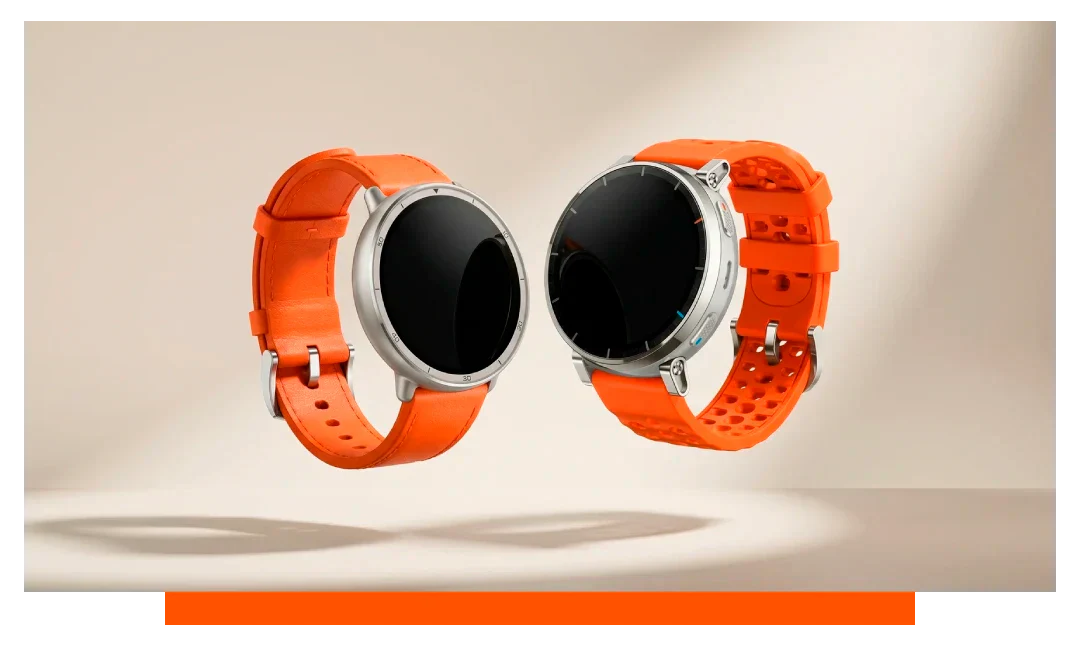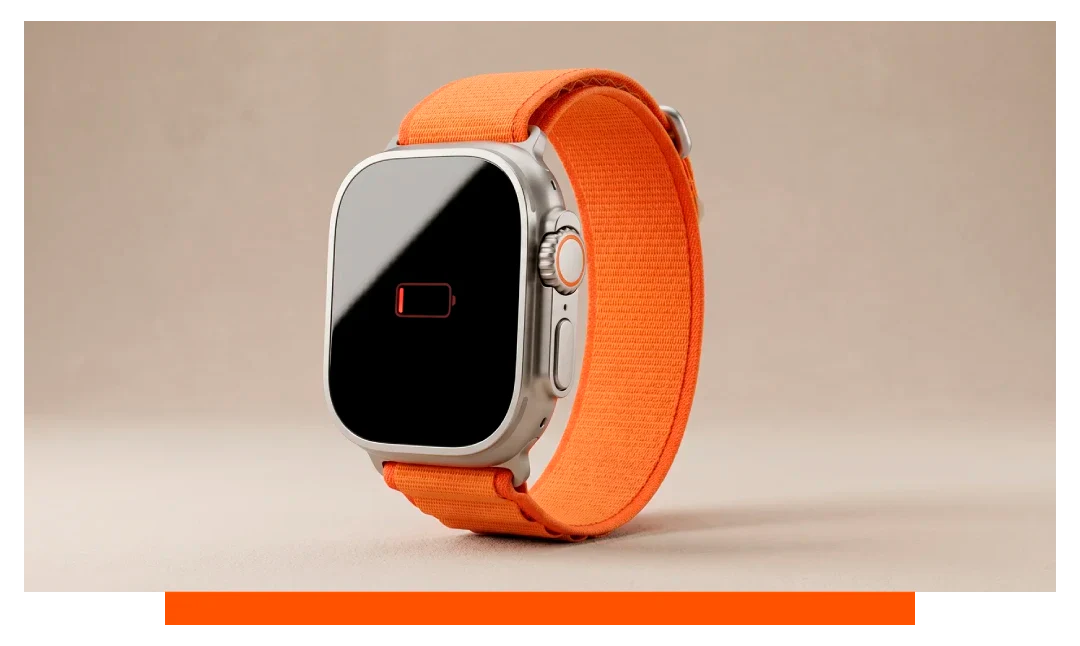
After a watchOS update, your Apple Watch may drain faster due to background reindexing, app reconfiguration, and new features toggled on. This temporary spike often settles within 24 to 72 hours. If it persists, adjust settings, recalibrate, and check Battery Health to isolate persistent issues.
What changes right after a watchOS update
Updates trigger system reindexing of health data, messages, photos, and Spotlight. Your Apple Watch 11 also re-learns motion patterns and recalibrates fitness models. These processes keep the CPU and radios busier, raising consumption by an estimated 10 to 30 percent for 1 to 3 days.
Indexing and machine learning catch-up
Health, Maps, and Photos rebuild caches in the background. Siri and on-device dictation models also update, briefly increasing storage and CPU activity. If your iPhone is far away, some syncing retries can extend this period.
Apps and complications reconfiguration
Third-party apps refresh credentials and pull new data. Complications on multiple watch faces can poll services more frequently after an update. Expect more Bluetooth and Wi-Fi chatter, especially if you use multiple faces on Apple Watch 11.
New toggles and features by default
Major updates sometimes enable features like additional widgets or enhanced metrics. Always On tweaks, double tap gestures, or Siri improvements may be active. Each can add 3 to 10 percent daily drain until optimized.
How to fix Apple Watch battery drain on watchOS?
First, give it 24 to 48 hours of normal use. Keep the Apple Watch 11 on-wrist and connected to your iPhone over Bluetooth for efficient syncing. Avoid repeated hard resets during this period, as that restarts indexing.
- Keep Bluetooth on
- Charge to 100 percent
- Avoid extreme heat
- Reduce active watch faces
- Update all apps
Systematic settings checklist
Open Settings - Battery - Battery Health & Charging and note Maximum Capacity and charge patterns. In Settings - General - Background App Refresh, disable refresh for apps you do not need on-wrist. In Settings - Display & Brightness, set Always On to off temporarily to test baselines.
In Settings - Workout, set Power Saving Mode for walking and running if metrics permit. Turn off Auto-launch Audio Apps in Settings - General to stop music apps waking the screen. In Settings - Privacy & Security - Location Services, set nonessential apps to While Using or Never.
On iPhone Watch app, remove unused watch faces with heavy complications. Limit live complication updates to essentials like Activity or Calendar. Reduce haptics to Default in Settings - Sounds & Haptics to save a small but measurable amount.
Practical tweaks for Apple Watch 11 battery stability
Disable Wrist Detection temporarily to test if constant locking is occurring due to a loose fit. Re-enable Wrist Detection afterward for Apple Pay and health tracking. Tighten the band one notch during workouts to reduce heart rate scan retries.
If a snug fit is hard to maintain, browse our Apple Watch straps and complement them with essential Apple Watch accessories for daily comfort. A stable fit improves sensor efficiency and reduces repeated readings. It can shave a few percent off daily drain.
Turn off Handwashing Timer if you do not need it. Consider lowering brightness one step and reducing Wake Duration to 15 seconds. Disable Hey Siri if accidental triggers occur, as wake word detection can add several wake events daily.
Expected drain patterns after updates - quick table
| Cause after update | Typical extra drain | Usual duration | What to do |
|---|---|---|---|
| Data reindexing | 10 to 20 percent | 24 to 48 hours | Keep paired and charging nightly |
| Complication refresh | 5 to 10 percent | 2 to 4 days | Reduce faces and data-heavy tiles |
| Health model recalibration | 5 to 15 percent | 2 to 3 days | Wear consistently for workouts |
| Wi-Fi or LTE retries | 10 to 25 percent | Until stable connection | Prefer Bluetooth near iPhone |
| Always On changes | 5 to 10 percent | Indefinite if enabled | Lower brightness or disable |
| Third-party app loops | Varies widely | Until fixed | Force quit or uninstall culprit |
Does recalibrating Apple Watch battery help?
Yes, if the reported percentage is out of sync with the true state of charge. Recalibration does not create capacity, but it aligns the gauge so the final 20 percent is more accurate. It can reduce sudden drops or unexpected shutdowns on Apple Watch 11.
When to recalibrate
If the watch jumps from 30 percent to 5 percent, the gauge may be off. If it dies at 15 to 20 percent repeatedly, recalibration is sensible. Also consider it after major updates if percentage behavior looks erratic.
How to recalibrate Apple Watch 11
Fully charge to 100 percent, then keep charging for 30 extra minutes. Use the watch normally and let it drain to under 10 percent, ideally until it powers off. Charge uninterrupted back to 100 percent, then restart the watch once.
Repeat the cycle a second time if readings still appear jumpy. After recalibration, compare a full day with similar usage to pre-update. If drain is still abnormally high, continue to the deeper checks below.
Deep diagnostics for persistent drain
Open Settings - Battery and review the Last 24 Hours graph. Look for apps listed with high screen or background usage, like podcasts or navigation. Remove or limit any app consuming more than 10 percent of total on a normal day.
Toggle Airplane Mode for 30 seconds to reset radios. Unpair and re-pair the Apple Watch 11 if ghost processes persist. This rebuilds the watch from a clean backup and often clears stuck logs.
If using LTE, test a Bluetooth-only day with the iPhone nearby. Cellular can add 15 to 25 percent drain in weak signal zones due to transmit power ramping. Consider turning off Cellular for nonessential periods.
Best practices after every major watchOS update
- Charge two nights consecutively
- Limit workouts day one
- Use fewer complications
- Keep iPhone nearby
- Update companion apps
Workout and GPS habits
Outdoor GPS workouts are the top variable in battery life. One hour of GPS plus music streaming can consume 10 to 20 percent on Apple Watch 11. Download playlists offline to reduce radio time during runs.
Display and haptics tuning
Bright faces and frequent notifications light the OLED more often. Switching to a darker face and trimming notifications can save several percentage points daily. Strong haptics also add small but cumulative drain.
When to consider service or replacement
If Battery Health reads below roughly 80 percent, daily life will feel shorter even after tuning. At that point, a battery service can restore endurance closer to new. Also check for swelling, overheating, or charging that stalls near 80 to 90 percent.
Document your steps and usage patterns before contacting support. Provide screenshots of Battery graphs after 2 to 3 stable days. This makes remote diagnosis faster and more decisive.
Frequently asked questions
How long should post-update drain last?
Most users see normalization within 24 to 72 hours. Large data sets or many third-party complications can extend this to 4 or 5 days. If nothing changes by then, action is warranted.
Is Always On the main culprit?
Always On typically adds 5 to 10 percent per day. It is not inherently bad, but it can tip the balance when indexing is also running. Try disabling it temporarily to establish a baseline on Apple Watch 11.
Do watch faces impact battery significantly?
Yes, faces with second hands or live data update more often. Fewer complications and darker designs reduce wake time and pixels lit. Many small changes add up over a full day.
Should I factory reset immediately?
No, wait for the settling period and complete the checklist first. A reset is helpful only if a software loop or corrupted cache persists. Unpair and re-pair is often enough without wiping health history.
Can chargers affect battery life?
Using certified chargers ensures safe and consistent power delivery. Intermittent charging or high heat will age cells faster. Keep charging surfaces clean and avoid hot dashboards.
Conclusion
Your Apple Watch battery drains faster after an update because background reindexing, refreshed apps, and new features temporarily increase workload. Most Apple Watch 11 units stabilize within 1 to 3 days; if not, optimize settings, recalibrate, and investigate high-usage apps. Persistent issues after tuning suggest service, especially when Battery Health trends below about 80 percent.